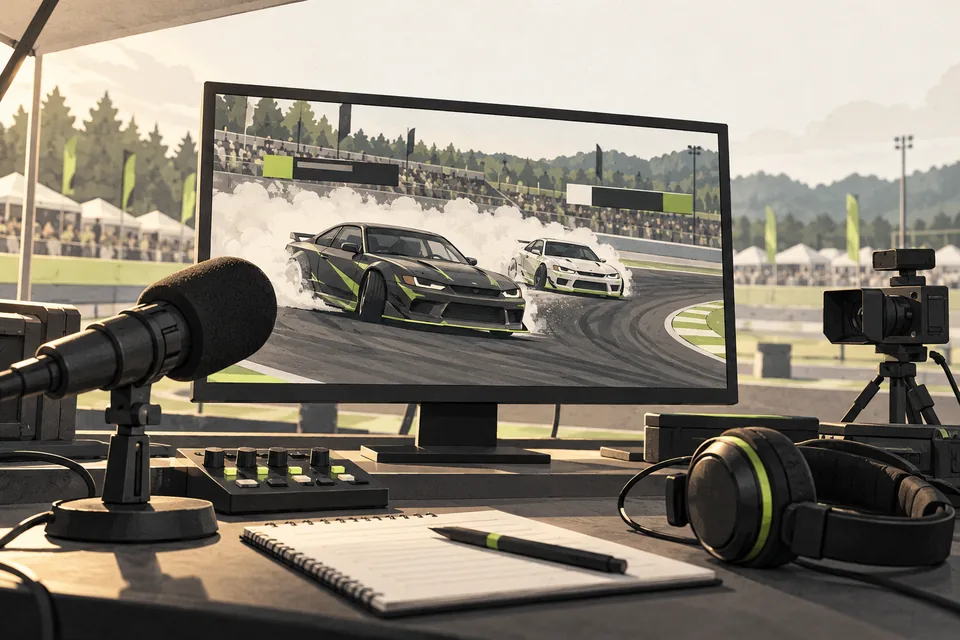
1. Give each replay a purpose
Choose the moment that helps explain the run: a transition, a correction or how the drivers handled a section. Let commentary tell viewers what to watch.
Label recorded footage clearly. Viewers should know when they are watching a replay and when the show returns to the live track.
2. Check the comparison before showing it
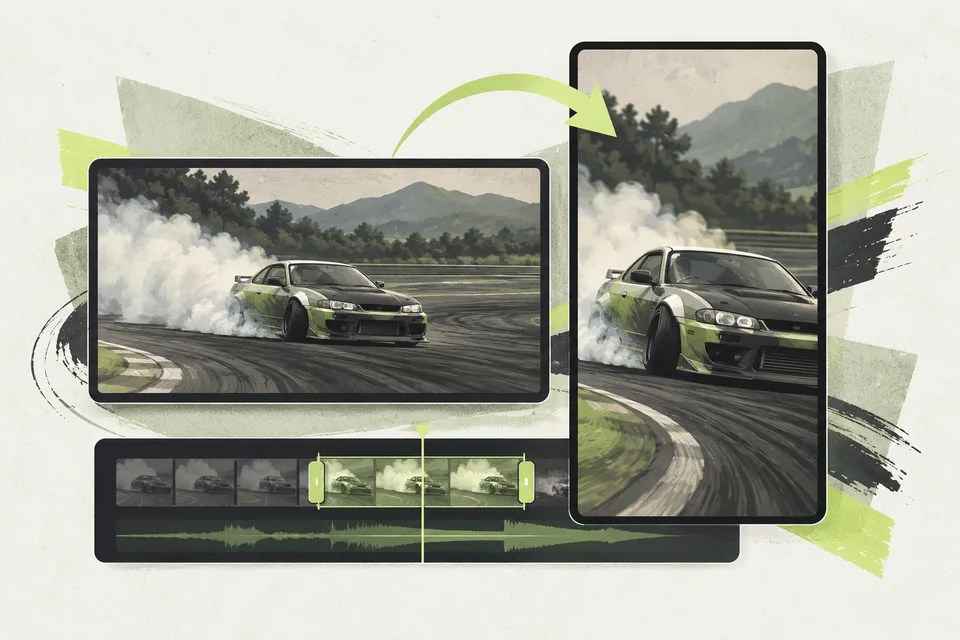
Side-by-side footage is useful when both clips show comparable moments. Starting two files together does not automatically line up the driving, so preview the clips before putting them on screen.
Agree who calls for replay and who brings the show back live. Keep the next run in mind so a replay does not hide new action.
3. Reduce the clip-handling work
Replay Recorder + Side-by-Side uses OBS hotkeys to record replay-camera views and load the latest and previous runs. Its comparison scene starts validated clips together, reducing the steps between recording and showing them.
Your operator still checks the footage and chooses when it goes live. The tool supports the replay handoff; it does not decide which moment proves a judging decision.
We check your hardware before purchase. If you also want scores and battle information to follow the judging Sheet, Broadcast Overlays is a separate option that requires Live Judging.
Before your next event
Readiness checklist
Tick these as you prepare, or print a copy for your team. This site does not save your ticks.
Keep the checklist
A simple copy for your team, ready to open in Google Sheets or Excel.
Common questions
Do I need Live Judging to use the replay module?
No. Replay Recorder + Side-by-Side is a standalone module. Its current workflow requires Windows, Assetto Corsa, CSP, OBS and a dedicated second NVIDIA GPU; we check compatibility before purchase.
Does side-by-side playback automatically align the driving?
No. The scene starts validated clips together. Your operator needs to prepare and check that the clips show comparable moments before using them on the broadcast.