1Keep one official source for scores
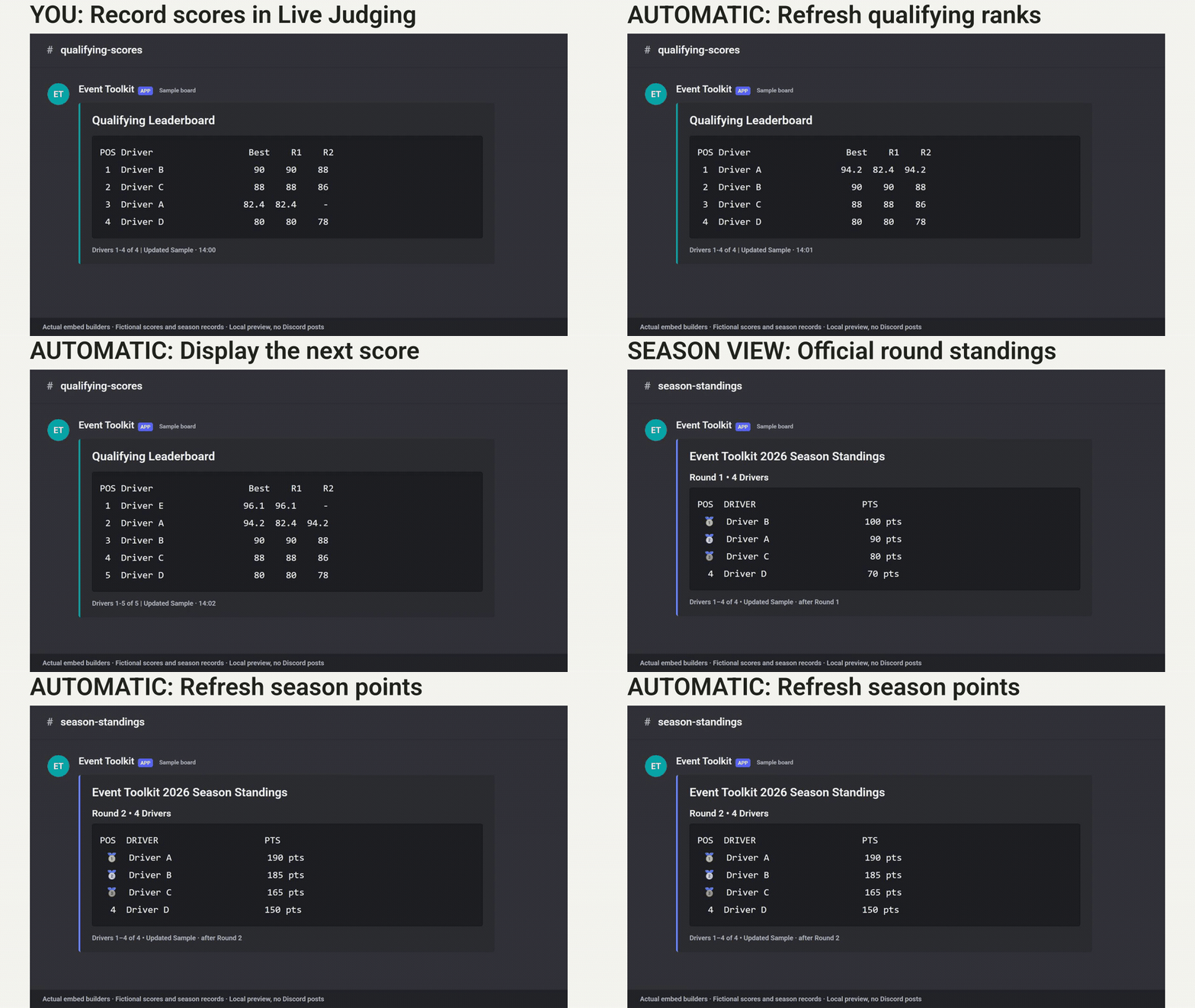
Record qualifying scores and confirm results in Live Judging. Your live system supplies the ranks and scores; Discord displays them. Agree who may correct a score and how the crew will communicate corrections.
The board is a convenient view for drivers, not a second scoring system. Keep sporting decisions and result approval with your judges and organizers.
2Give drivers a clear place to check
Configure Discord Live Leaderboards for your qualifying and season channels. The qualifying embed lists position, driver, best score and both runs. The season embed shows official points and positions from the configured season data.
The bot refreshes existing board messages at a configured interval. Larger fields use multiple embeds or messages. Test permissions and check that drivers can read the channels before the event.
3Rehearse an update before the first run
Use test data to change a qualifying score. Wait for the configured refresh, then compare the displayed position, Best, R1 and R2 with the live source. Check the update timestamp too.
Refreshes depend on the bot host, internet access and the data feed. If the board is delayed, check the official source and tell drivers where to find confirmed information. A visible board alone does not prove its data is current.
4Publish season progress after confirming the round
Review and archive the official round in Live Judging. The live system calculates season points using your configured scoring rules. Discord Live Leaderboards then refreshes its season view from that published data.
Check the season, round and leading positions before sharing the update. This module displays leaderboards; group role assignments, voice moves and driver calls are separate workflows.
Tools in this guide
| Module | What it handles | Requires |
|---|---|---|
| Live Judging | Enter qualifying scores and battle votes in one Google Sheet. | Works on its own |
| Discord Live Leaderboards | Record scores in Live Judging. | Live Judging |
Before your next event
Readiness checklist
Tick these as you prepare, or print a copy for your team. This site does not save your ticks.
Keep the checklist
A simple copy for your team, ready to open in Google Sheets or Excel.
Common questions
Does Discord calculate the qualifying ranks or season points?
No. The live competition system supplies official ranks, scores and season points. The Discord module displays that data and refreshes its existing board messages.
Are score changes displayed instantly?
Boards refresh at a configured interval while the bot host and feed are available. Test the expected delay before the event and check timestamps when announcing results.